Google Blacklist Check: Is Your Site Flagged as Dangerous?
One morning your traffic drops to zero and visitors see a red screen: 'Deceptive site ahead.' Here is how to check whether Google Safe Browsing blacklisted your site, what usually triggers it, and the fastest path back to a clean status.
📑 Table of contents
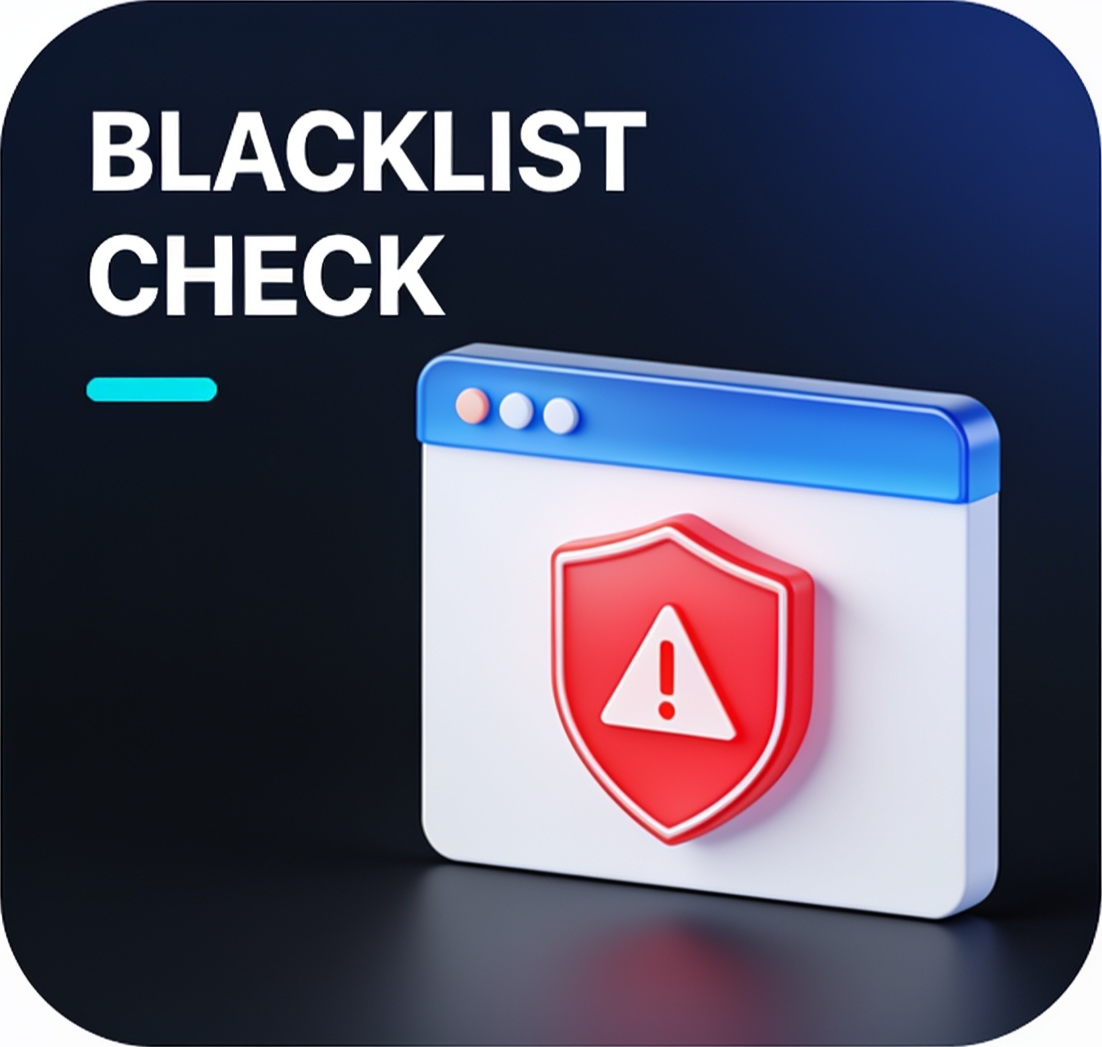
The red screen is every site owner's nightmare: "Deceptive site ahead" or "This site may be hacked." Traffic collapses within hours — Chrome, Firefox, and Safari all show interstitial warnings that block the visit before your page ever renders. If it has already happened to you, this guide walks through the recovery path. If it has not, the second half shows you how to catch the problem first, because blacklisting is always the symptom — the infection came first.
What the Google blacklist actually is
Google maintains Safe Browsing, a threat list that powers the warnings in most major browsers. When your site lands on it, three things happen at once:
- 🛑 Browser interstitials — visitors see a full-page warning and must click through deliberately
- 🔍 Search annotations — results may show "this site may harm your computer"
- 📉 Traffic collapse — typically 70–95% of visitors never arrive
A related but separate list is the Search "hacked site" label, which appears when Google detects spam pages or injected content — often without a browser interstitial but with equally damaging SEO effects.
How to check your status (free, official)
1. Safe Browsing site status
Google's official checker reports whether your site is flagged across four categories: dangerous sites, deceptive sites, potentially harmful applications, and unwanted software. A clean result here is the authoritative answer.
2. Search Console security issues
Google Search Console lists detected infections with sample URLs. If you have not verified your property yet, that is the first prerequisite — you cannot request a review without it.
3. Independent malware scan
Google tells you that you are infected; a scanner tells you where. Run a full website security scan that looks for:
- 🧬 Injected
<script>blocks pointing to unknown domains - 🖼️ Hidden iframes (width=0, height=0) buried in footers
- 📝 Spam pages and doorway content in unusual directories
- ⚙️ Modified core files (in WordPress: compare against clean releases)
- 🔑 Backdoor shells masquerading as legitimate PHP files
Why sites get flagged: the usual causes
In practice, legitimate sites end up blacklisted through a small set of entry points:
| Cause | Typical scenario | Share of cases |
|---|---|---|
| Vulnerable CMS plugin | Outdated WordPress plugin with a known exploit | Very common |
| Stolen admin credentials | Password reused from an earlier breach — see our credential leak guide | Common |
| Server compromise | Shared hosting neighbor or outdated server software | Common |
| Malicious third-party script | Ad network or widget serving malicious payloads | Occasional |
| Injected redirects | .htaccess or JS redirects to scam domains | Occasional |
The pattern to internalize: the malware is the payload, the vulnerability is the door. Deleting injected scripts without finding the door means re-infection in days — and each re-infection makes the next review slower.
The removal playbook
- 🔍 Confirm the flag — Safe Browsing status + Search Console security page
- 🧹 Clean everything — remove injected code, spam pages, unknown admin accounts, and backdoors; our malware & defacement monitoring primer lists the hiding spots attackers favor
- 🚪 Close the door — update the CMS and every plugin, rotate all passwords, remove unused plugins/themes, patch the server
- 📋 Request review — from Search Console; be honest and complete, a partial cleanup gets re-flagged
- ⏱️ Wait for the verdict — typically a few days; keep monitoring during the window
- 🔁 Re-scan after cleanup — verify from the outside that no injected content remains
Prevention: catch it before Google does
Google's crawlers find infections on their schedule — which may be weeks after the injection. The gap is where continuous monitoring earns its keep:
- 📡 Scheduled malware scans — content change detection that flags new scripts and iframes the day they appear
- 🌐 Defacement watch — homepage content diffing so a swapped index page triggers an alert in minutes
- 🗓️ Update cadence — scan after every deploy; vulnerabilities in fresh plugin updates appear fast
- 👥 Credential hygiene — check whether admin emails appear in breach collections; our exposure check does this for free
A blacklisted site is recoverable — usually within a week for a prepared owner. The difference between a bad day and a bad quarter is whether you found the infection first or Google's crawler did.
Security research and engineering at 2MNY — the team behind 282 free website-security scanners and the open-source Website Vulnerability Scanner. We find exposed secrets, misconfigurations and real vulnerabilities, then explain how to fix them in plain language.
1 How do I check if Google blacklisted my website?
Use the Google Safe Browsing site status checker for the official verdict, and scan your site for the underlying cause — injected scripts, hidden iframes, or spam pages — with a website malware scanner.
2 Why does Google flag websites as dangerous?
Google Safe Browsing flags sites that serve malware, run phishing pages, host unwanted software, or contain injected spam content. Most legitimate-site flags come from a compromised server or a vulnerable plugin, not intentional abuse.
3 How long does it take to remove a Google blacklist warning?
After you clean the infection and request a review in Google Search Console, reviews typically complete within a few days. Re-infections extend the process, so fixing the entry point matters more than deleting the payload.
4 Will a blacklist warning affect my SEO and traffic?
Yes, immediately and severely. Browsers like Chrome and Firefox display interstitial warnings that block most visitors, and search results may attach a 'this site may be hacked' label, cutting organic traffic dramatically.